This section provides step-by-step instructions to deploy the OpsRamp Gateway VM using a Gateway image on supported public cloud environments. The following public cloud environments are supported:
- AWS
- Azure
- GCP
Prerequisites
Before deploying the Gateway VM, ensure the following prerequisites are met:
- Valid license and credentials to register the Gateway.
- Access to the public cloud environments.
- VM network connectivity to the OpsRamp Cloud endpoints.
- Refer to the minimum server requirements before creating a VM.
Installation Steps
Step 1: Request Access to the AWS Gateway Image (AMI)
To deploy the Classic Gateway on AWS, you must request access to the OpsRamp-provided Amazon Machine Image (AMI).
Follow the steps below to request access to the AWS AMI through the OpsRamp portal.
Requirements:
- OpsRamp Portal access.
- AWS Account ID.
- Permissions in OpsRamp to manage Collector Profiles.
Procedure:
- Log in to the OpsRamp Portal.
- Navigate to All Clients and select the client where you want to deploy the Gateway.
- Go to Setup > Account > Collector Profiles.
- Click the + ADD button to create a new Collector profile.

Enter the Collector Profile Details:
- Profile Name: Enter a name for your profile (e.g., AWS-Gateway-Deployment).
- Profile Type: Leave this as Standard (default).
- Description: (Optional) Add a short description for reference.
In the Gateway Collector (Classic) section, select the Amazon Machine Image (AMI) tile.
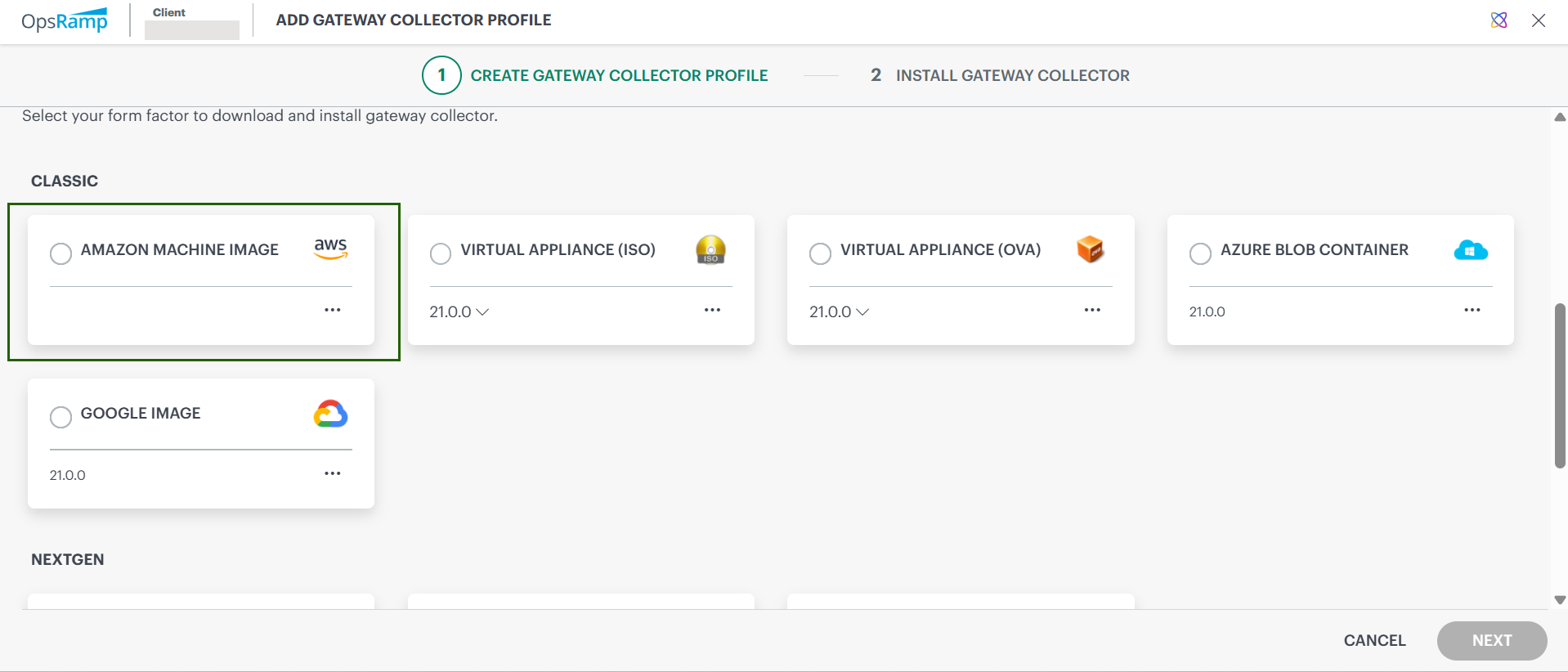
Enter your AWS Account ID and select the AWS region (e.g., us-east-1, us-west-2, etc.) where you want to deploy the AMI.
Click Request Access to request AMI access. This sends an automated request to the OpsRamp platform support team.
You will receive a confirmation email once access to the AMI is granted.Click Finish to complete the profile configuration.
Next Steps:
- The OpsRamp support team will share the AMI with your specified AWS account.
- You’ll receive a confirmation once the AMI is available for use.
- After that, you can launch the EC2 instance using the shared AMI to deploy your Gateway.
Step 2: Launch and Configure the Classic Gateway EC2 Instance on AWS
After AMI access is granted, launch the EC2 instance using the shared image. Follow the steps below to set up your instance correctly.
Requirements:
- AWS Console access with EC2 permissions.
- OpsRamp Gateway AMI access must be granted to your AWS account (see Step 1).
- Target AWS region for deployment is identified.
Procedure:
Log in to the AWS Management Console.
Go to Services > EC2. The EC2 Dashboard is displayed.
In the left navigation pane, select Images > AMIs.
Select Owned by me and then choose Private images from the filter options.
You’ll see a list of private AMIs shared with your account.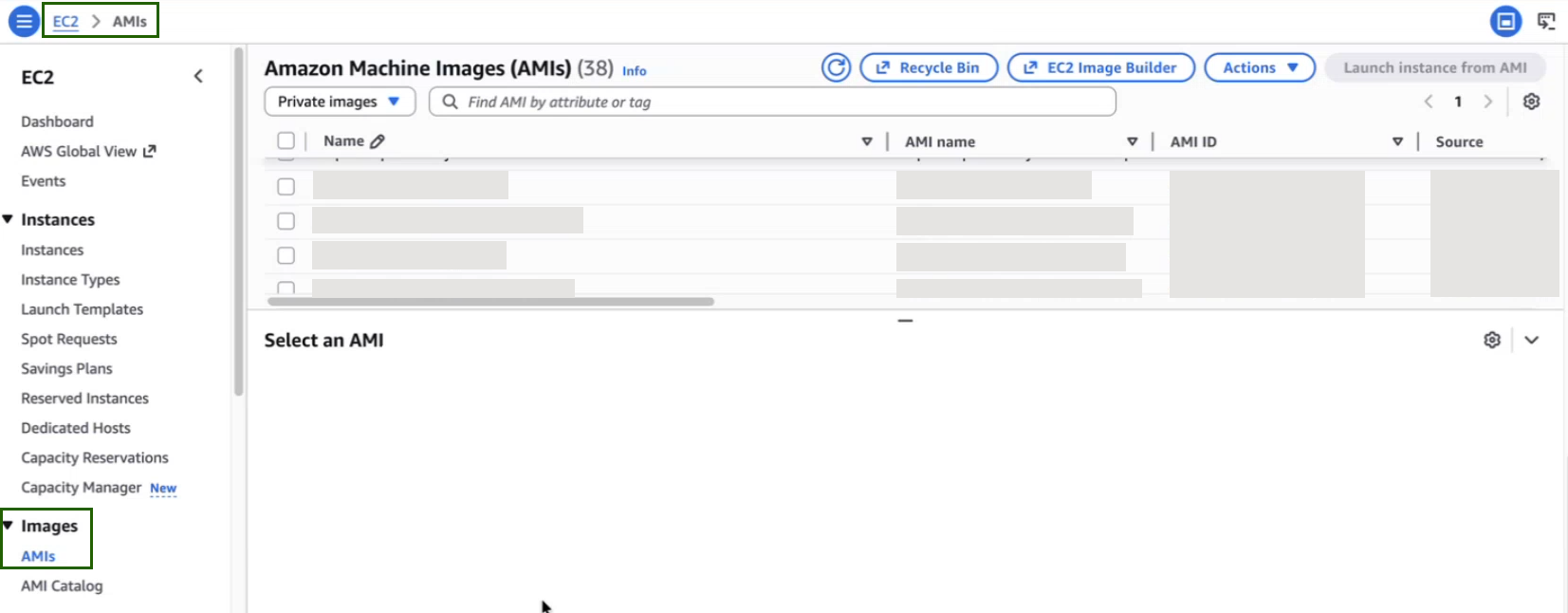
Select the correct OpsRamp Gateway AMI (for example, OpsRampGateway-20.0.0, shown in image below) from the list and then click Launch instance from AMI to begin the EC2 instance configuration.

On the Launch an instance page, select an instance type that meets the minimum server requirements.
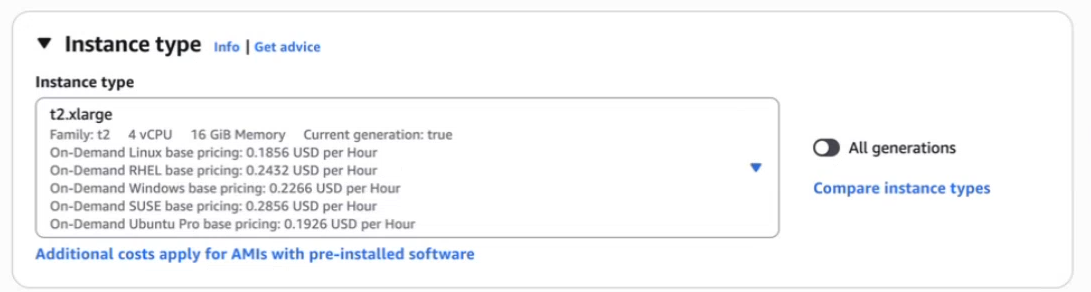
In the Key pair (login) section, select a key-pair name.
Configure Network Settings:
- Set the number of instances you want to deploy (one per Gateway).
- (Optional) Make sure Auto-assign Public IP is enabled, unless you plan to use a private IP.
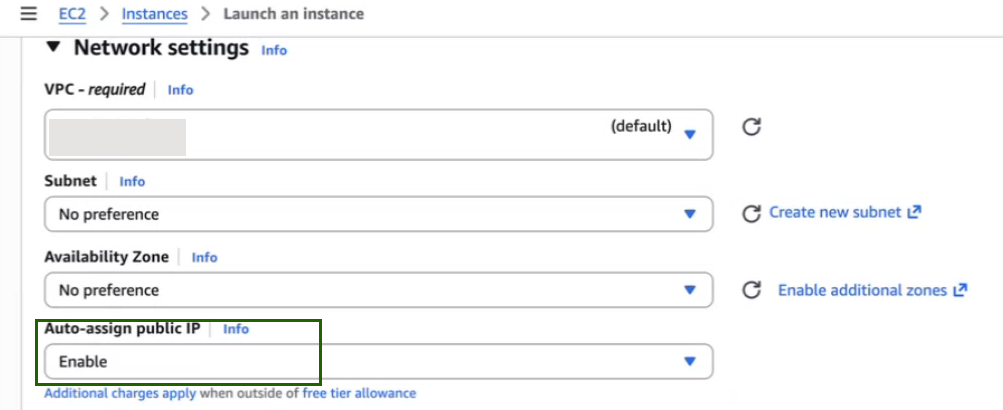
- Leave other default settings unless your architecture requires custom networking.
Add Storage:
- The root volume is added automatically.
- Ensure the disk size meets the minimum server requirements.
- You can increase this size if needed based on data retention or expected workload.
Add Tags (Optional):
- Tags help you identify and organize AWS resources.
- For example, you can add a tag like: Key: Name | Value: OpsRamp-Classic-Gateway
Configure Security Group (Firewall Rules):
- You can select an existing security group or create a new one.
- Ensure the following inbound ports are allowed:
- Refer to minimum system requirements.
- Click Launch instance. Once the launch is completed successfully, a confirmation message is displayed with the instance number.
After launching:
- Navigate to EC2 > Instances.
- Click the instance that you just created. The Instance Summary page displays the details of the instance.
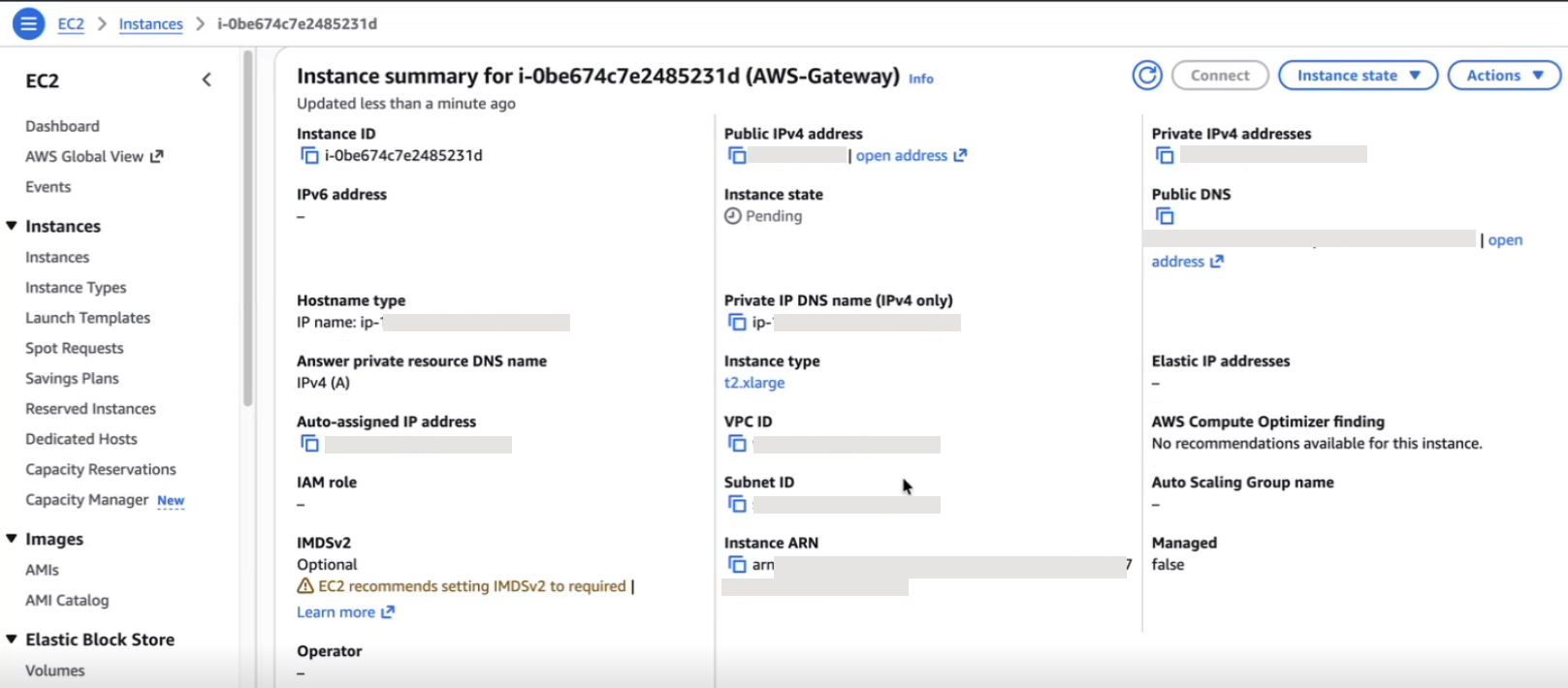
Once the instance is ready, you can access the Gateway Admin UI at: https://<Public/Private Gateway IP>:5480
For the next steps, refer Install Gateway on AWS, Azure, and GCP
Step 1: Create a Resource Group and Required Resources
Requirements:
- You have access to your Azure account.
- You have decided on the region for deployment.
Procedure:
- Log in to your Azure account from your browser.
- In the top-left corner, click the menu icon and select Resource Groups.
- From the Resource Groups screen, click +Create.
- Enter the resource group name, select the required resource group location, and click Create.
- Verify that the resource group is created.
- To create a Storage Account in the resource group, navigate back to the menu icon in the top-left corner and click Storage Accounts.
- Click +Create to create a new storage account within the resource group.
- Open the Storage Account and click Blob Service.
- Click +Container to create a new container, enter a name, and select Private (no anonymous access).
- Click Create. You need to save the gateway VHD file in this Container for later.
- To create a virtual network in the resource group, navigate back to the menu icon in the top-left corner and click Virtual networks.
- Click +Create. You now have a resource group, storage account, and virtual network in the same resource group.
Step 2: Create the Template JSON to Launch the Gateway
- Log in to your Azure account from your browser.
- Search for Template Spec in the search area.
- Click + Create Template Spec to create a new template.
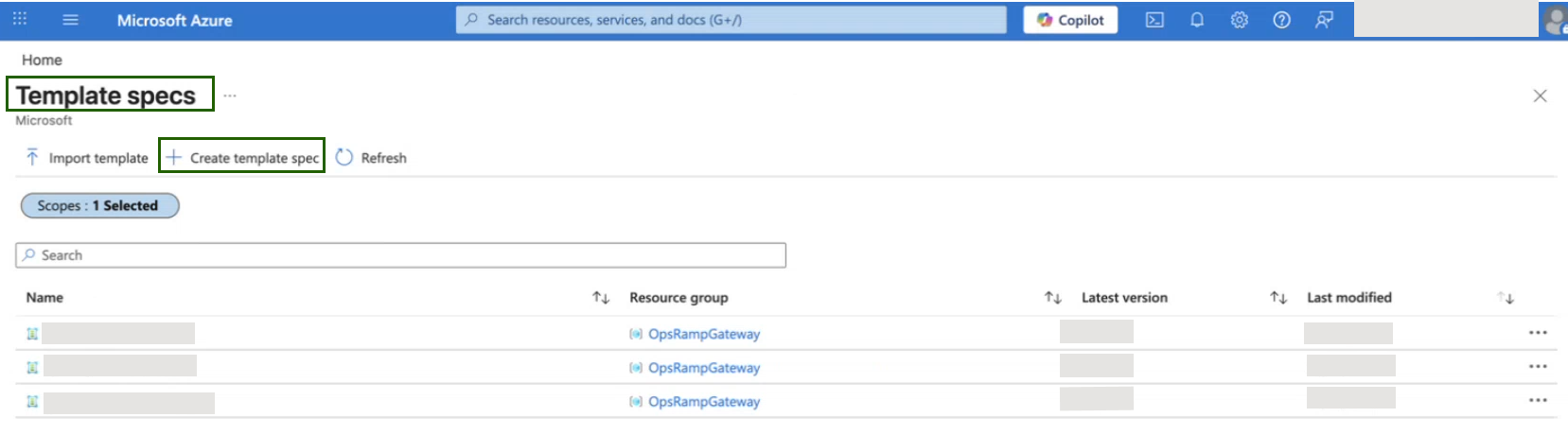
- Enter the template name, resource group, description, and version, then click the Edit Template tab.
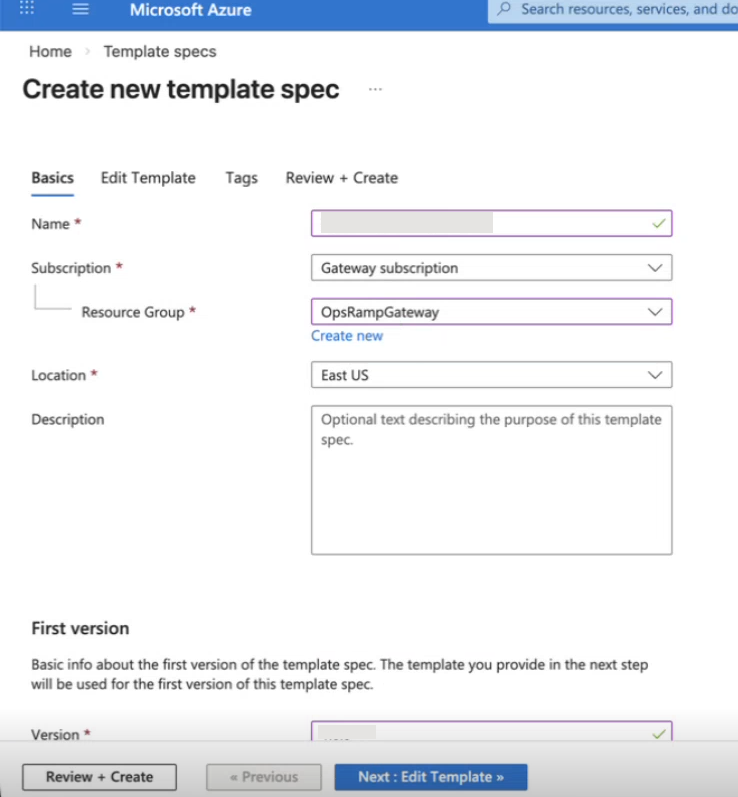
- Copy the following JSON code, paste it, and click on the Review + Create tab.
{
    "$schema": "https://schema.management.azure.com/schemas/2015-01-01/deploymentTemplate.json#",
    "contentVersion": "1.0.0.0",
    "parameters": {
        "vmName": {
            "type": "string",
            "metadata": {
                "description": "Name of the VM"
            }
        },
        "osType": {
            "type": "string",
            "defaultValue": "Linux",
            "metadata": {
                "description": "Type of OS of the existing vhd"
            }
        },
        "vmSize": {
            "type": "string",
            "metadata": {
                "description": "Size of the VM"
            },
            "defaultValue": "Standard_B2s"
        },
        "storageaccountname": {
            "type": "string",
            "metadata": {
                "description": "Provide the Storage account name"
            }
        },
        "osDiskVhdUri": {
            "type": "string",
            "metadata": {
                "description": "Uri of the existing OS VHD in ARM standard or premium storage"
            }
        },
        "existingVirtualNetworkNameID": {
            "type": "string",
            "metadata": {
                "description": "Name of the existing VNET ID"
            }
        },
        "subnetName": {
            "type": "string",
            "metadata": {
                "description": "Name of the subnet in the virtual network you want to use"
            }
        },
        "enablePublicIP": {
            "type": "bool",
            "defaultValue": true,
            "metadata": {
                "description": "Enable/Disable Public IP"
            }
        }
    },
    "variables": {
        "diagStorageAccountName": "[parameters('storageaccountname')]",
        "publicIPAddressType": "Dynamic",
        "vnetID": "[parameters('existingVirtualNetworkNameID')]",
        "subnetRef": "[concat(variables('vnetID'),'/subnets/', parameters('subnetName'))]",
        "nicName": "[concat(parameters('vmName'), '-nic1')]",
        "publicIPAddressName": "[concat(parameters('vmName'), '-pip')]"
    },
    "resources": [
        {
            "condition": "[parameters('enablePublicIP')]",
            "apiVersion": "2023-05-01",
            "type": "Microsoft.Network/publicIPAddresses",
            "name": "[variables('publicIPAddressName')]",
            "location": "[resourceGroup().location]",
            "tags": {
                "displayName": "PublicIPAddress"
            },
            "properties": {
                "publicIPAllocationMethod": "[variables('publicIPAddressType')]"
            }
        },
        {
            "apiVersion": "2023-05-01",
            "type": "Microsoft.Network/networkSecurityGroups",
            "name": "VistaraNSG",
            "location": "[resourceGroup().location]",
            "tags": {
                "displayName": "VistaraVM-NSG"
            },
            "properties": {
                "securityRules": [
                    {
                        "name": "SSH",
                        "properties": {
                            "description": "Allow SSH",
                            "protocol": "Tcp",
                            "sourcePortRange": "*",
                            "destinationPortRange": "22",
                            "sourceAddressPrefix": "Internet",
                            "destinationAddressPrefix": "*",
                            "access": "Allow",
                            "priority": 100,
                            "direction": "Outbound"
                        }
                    },
                    {
                        "name": "HTTPS",
                        "properties": {
                            "description": "Allow HTTPS",
                            "protocol": "Tcp",
                            "sourcePortRange": "*",
                            "destinationPortRange": "443",
                            "sourceAddressPrefix": "Internet",
                            "destinationAddressPrefix": "*",
                            "access": "Allow",
                            "priority": 101,
                            "direction": "Outbound"
                        }
                    }
                ]
            }
        },
        {
            "condition": "[parameters('enablePublicIP')]",
            "apiVersion": "2023-05-01",
            "type": "Microsoft.Network/networkInterfaces",
            "name": "[variables('nicName')]",
            "location": "[resourceGroup().location]",
            "dependsOn": [
                "[concat('Microsoft.Network/publicIPAddresses/', variables('publicIPAddressName'))]",
                "[concat('Microsoft.Network/networkSecurityGroups/', 'VistaraNSG')]"
            ],
            "tags": {
                "displayName": "NetworkInterface"
            },
            "properties": {
                "ipConfigurations": [
                    {
                        "name": "ipconfig1",
                        "properties": {
                            "privateIPAllocationMethod": "Dynamic",
                            "publicIPAddress": {
                                "id": "[resourceId('Microsoft.Network/publicIPAddresses',variables('publicIPAddressName'))]"
                            },
                            "subnet": {
                                "id": "[variables('subnetRef')]"
                            }
                        }
                    }
                ],
                "networkSecurityGroup": {
                    "id": "[resourceId('Microsoft.Network/networkSecurityGroups', 'VistaraNSG')]"
                }
            }
        },
        {
            "condition": "[not(parameters('enablePublicIP'))]",
            "apiVersion": "2023-05-01",
            "type": "Microsoft.Network/networkInterfaces",
            "name": "[variables('nicName')]",
            "location": "[resourceGroup().location]",
            "dependsOn": [
                "[concat('Microsoft.Network/networkSecurityGroups/', 'VistaraNSG')]"
            ],
            "tags": {
                "displayName": "NetworkInterface"
            },
            "properties": {
                "ipConfigurations": [
                    {
                        "name": "ipconfig1",
                        "properties": {
                            "privateIPAllocationMethod": "Dynamic",
                            "subnet": {
                                "id": "[variables('subnetRef')]"
                            }
                        }
                    }
                ],
                "networkSecurityGroup": {
                    "id": "[resourceId('Microsoft.Network/networkSecurityGroups', 'VistaraNSG')]"
                }
            }
        },
        {
            "apiVersion": "2023-07-01",
            "type": "Microsoft.Compute/virtualMachines",
            "name": "[parameters('vmName')]",
            "location": "[resourceGroup().location]",
            "tags": {
                "displayName": "VirtualMachine"
            },
            "dependsOn": [
                "[concat('Microsoft.Network/networkInterfaces/', variables('nicName'))]"
            ],
            "properties": {
                "hardwareProfile": {
                    "vmSize": "[parameters('vmSize')]"
                },
                "storageProfile": {
                    "osDisk": {
                        "name": "[concat(parameters('vmName'),'-osDisk')]",
                        "osType": "[parameters('osType')]",
                        "caching": "ReadWrite",
                        "vhd": {
                            "uri": "[parameters('osDiskVhdUri')]"
                        },
                        "createOption": "Attach"
                    }
                },
                "networkProfile": {
                    "networkInterfaces": [
                        {
                            "id": "[resourceId('Microsoft.Network/networkInterfaces',variables('nicName'))]"
                        }
                    ]
                },
                "diagnosticsProfile": {
                    "bootDiagnostics": {
                        "enabled": "true",
                        "storageUri": "[concat(reference(concat('Microsoft.Storage/storageAccounts/', parameters('storageaccountname')), '2016-01-01').primaryEndpoints.blob)]"
                    }
                }
            }
        }
    ]
}
Step 3: Download the Azure Blob Container
To download the Azure Blob Container from OpsRamp portal, follow the steps below:
- From All Clients, select a client.
- Go to Setup > Account > Collector Profile.
- Click + ADD on the Collector Profiles page.
- Enter the following details on the configuration page:
- Profile Name: Provide a name for the profile you are creating.
- Profile Type: By default, the Standard profile type is selected.
- Description: (Optional) Add a short description for the profile.
- Gateway Collector (Classic): Select the Azure Blob Container tile.
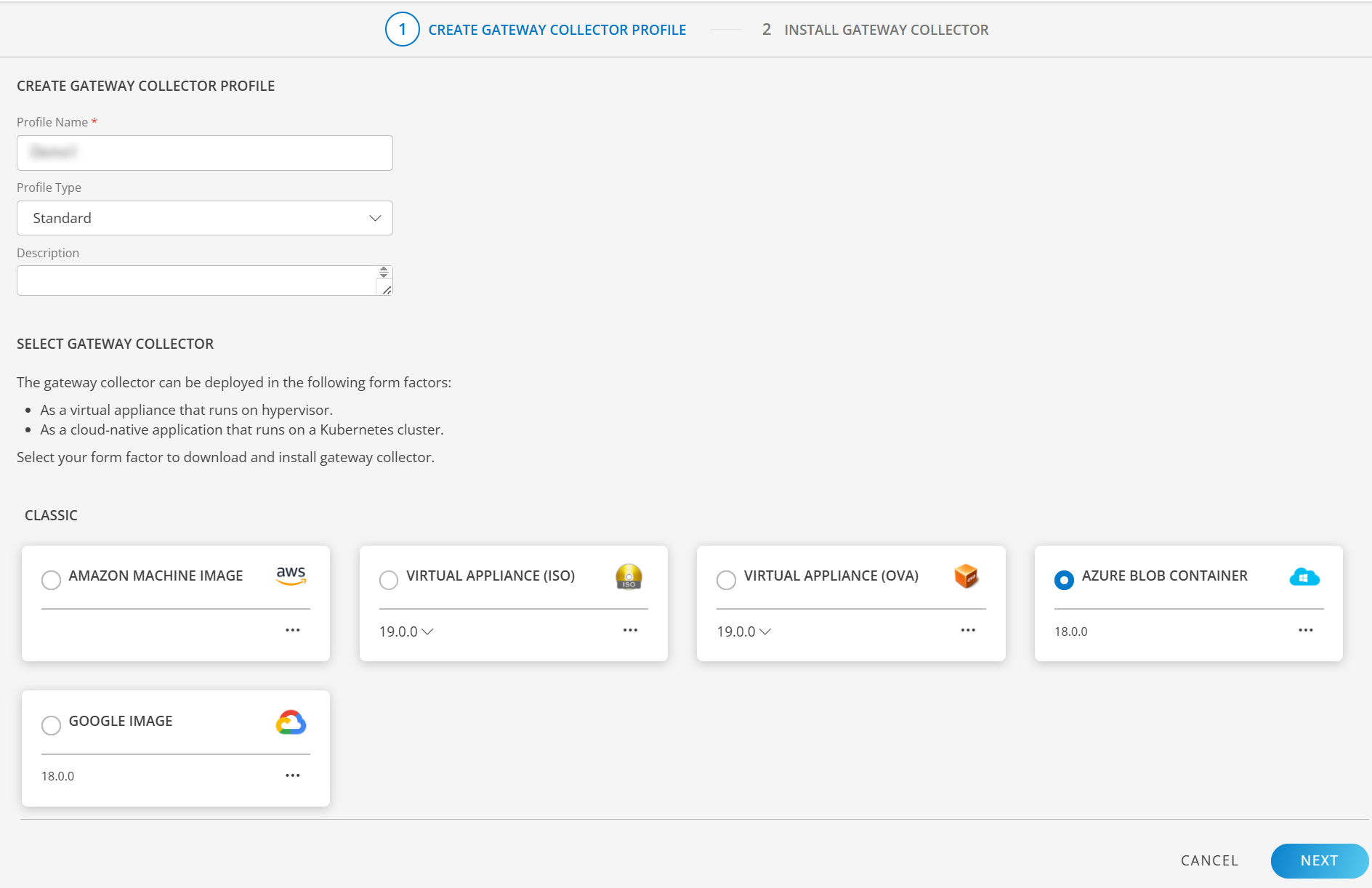
- Click NEXT to proceed.
- On the Azure widget, click Copy Link icon to copy the Azure blob container link.
- Use this link to download the Azure Gateway VHD file using Microsoft Azure Storage Explorer. You can download and install Microsoft Azure Storage Explorer on your machine if needed.
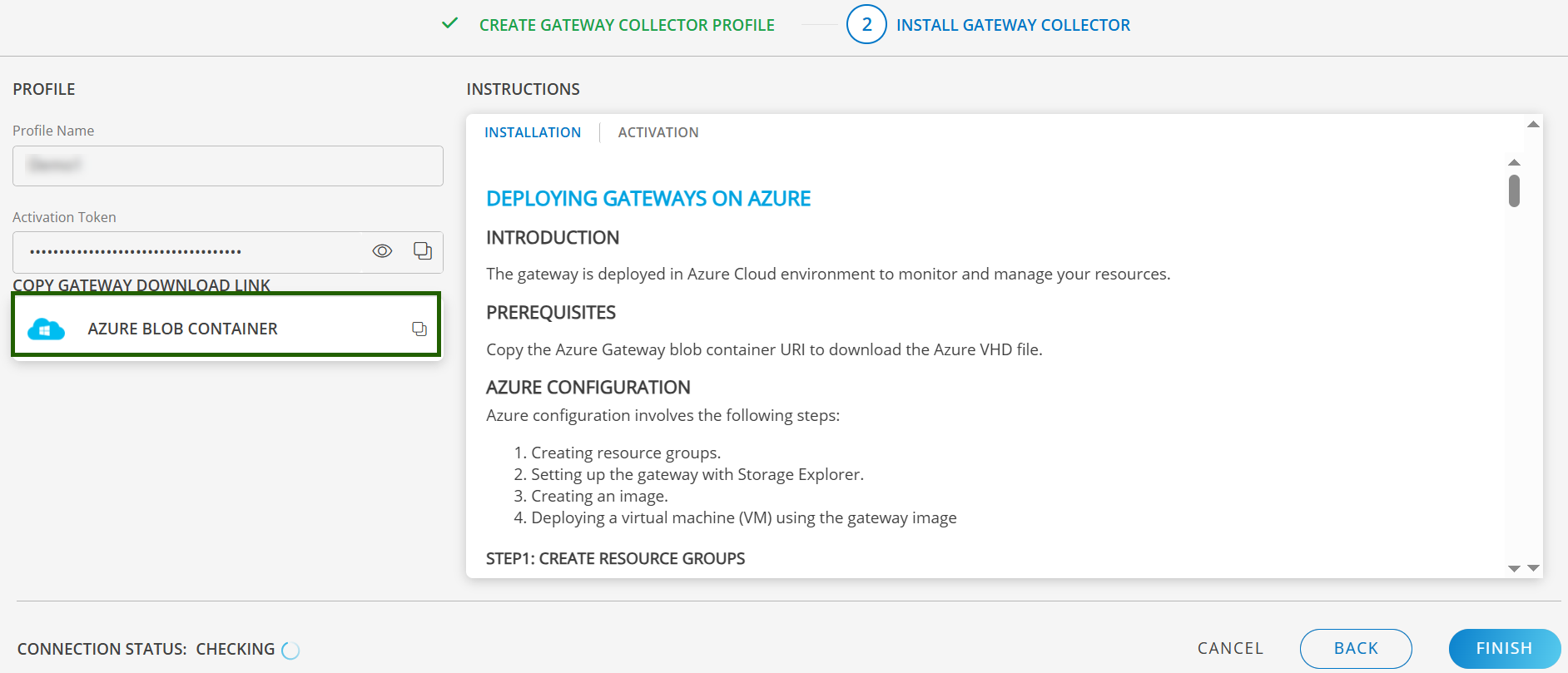
8. Finally, Click to Finish to complete the configuration.
Step 4: Setup a Gateway with Storage Explorer
Open MS Azure Storage Explorer and click the User icon on the left side panel. Add your account by clicking “Add an account link”, which displays a pop-up window.
Click Subscription and log in to your Azure account to access your storage.
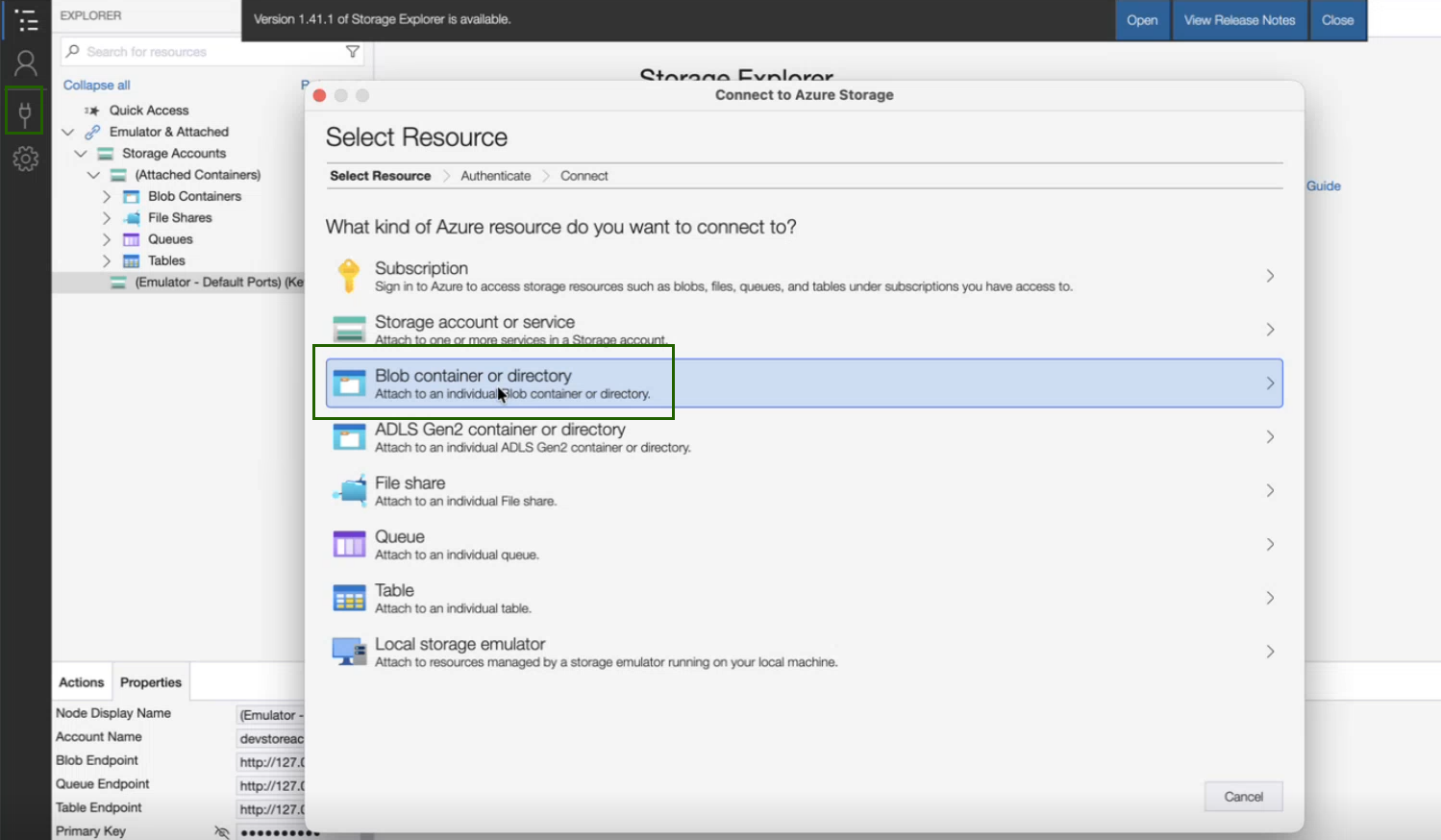
After logging into the account, click the Connect icon, which displays a pop-up window
Click Blob container or directory.
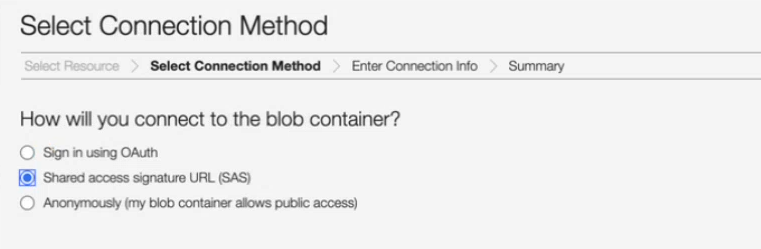
Select the Shared access signature URL (SAS) radio button.
Paste the link that you copied from the OpsRamp Gateway download page and click Next.
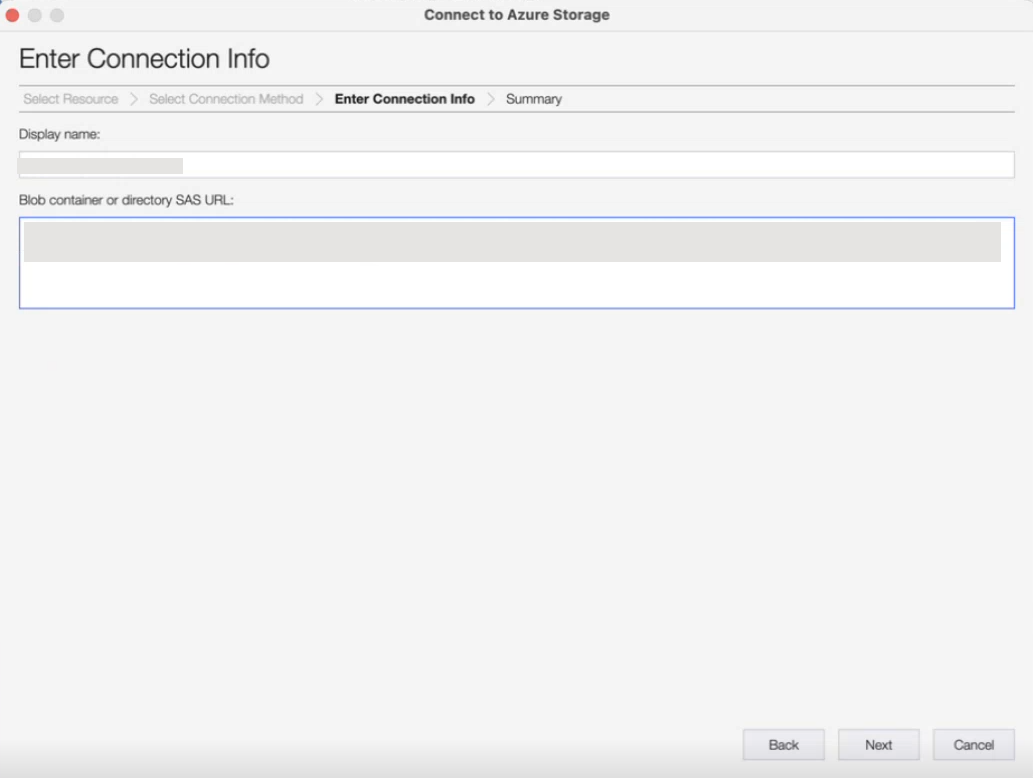
- Click Connect. The Gateway VHD file is available in your Azure storage explorer at Local & Attached > Storage Accounts > Blob Containers.
- Right-click the
OpsRamp
gateway VHD file and copy it.
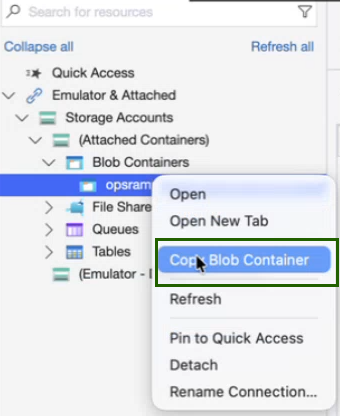
- Navigate to the storage container you created in the steps and paste the Gateway VHD file. This process takes some time so make sure you wait until the file download process completes.
Step 5: Deploy a Gateway using the Template JSON
- In the browser, log in to your Azure account and navigate to the templates page.
- Click your previously created template.
- Click Deploy and enter the following required information in the gateway deployment form:
| Property | Description |
|---|---|
| Resource Group | Select the resource group you created for gateway deployment. |
| VM Name | Enter a user-defined gateway VM name. |
| OS Type | Linux |
| VM Size | The minimum size is Standard_B2s. You can increase the size according to your requirements. |
| Storage Account Name |
|
| OS Disk VHD URI |
You can deploy only one gateway per VHD file. If you want to deploy more than one gateway, make a copy of the VHD file before deploying another gateway. |
| Existing Virtual Network Name ID |
|
| Subnet Name |
|
- Accept the terms and conditions and click the Purchase button to deploy the gateway. Deployment takes a couple of minutes. You can check the progress on the Notification page.
- After deployment, go to Virtual Machines and select the gateway.
- In the left-hand side menu, choose the Networking option.
- Select Add inbound port rule and allow ports 22 and 5480 according to your requirement to access the gateway using SSH or WebUI.
- You can access the gateway by using the public IP address assigned to it.
Once the instance is ready, you can access the Gateway Admin UI at: https://<Public/Private Gateway IP>:5480
For the next steps, refer Install Gateway on AWS, Azure, and GCP
Step 1: Download the Google Image
To download the Google Image from OpsRamp Portal, follow the steps below:
From All Clients, select a client.
Go to Setup > Account > Collector Profile.
Click + ADD on the Collector Profiles page.
Enter the following details on the configuration page:
- Profile Name: Provide a name for the profile you are creating.
- Profile Type: By default, the Standard profile type is selected.
- Description: (Optional) Add a short description for the profile.
- Gateway Collector (Classic): Select the Google Image tile.
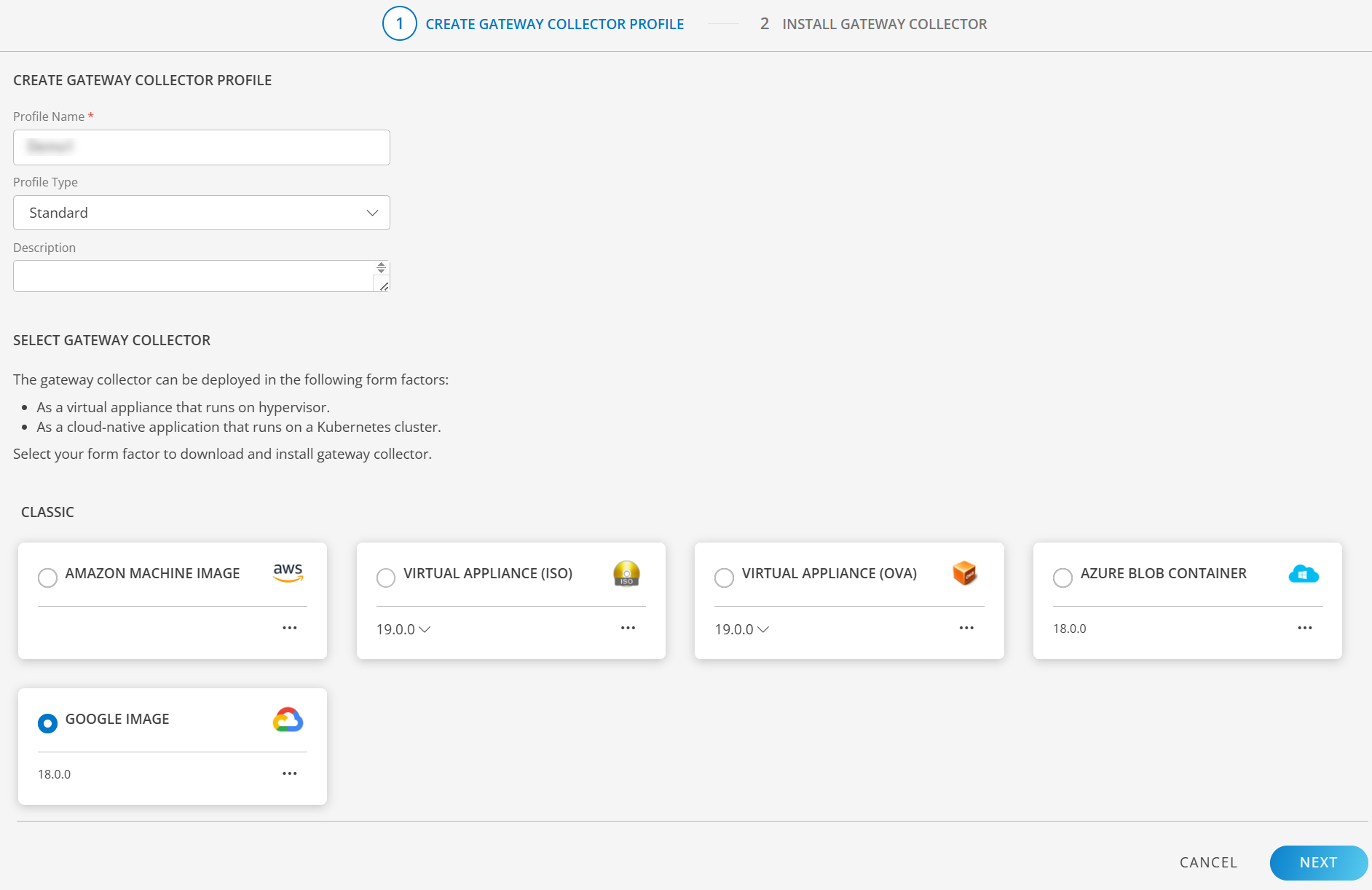
- Click NEXT to proceed.
- Click the download button in the Google Cloud Image widget to download the file.
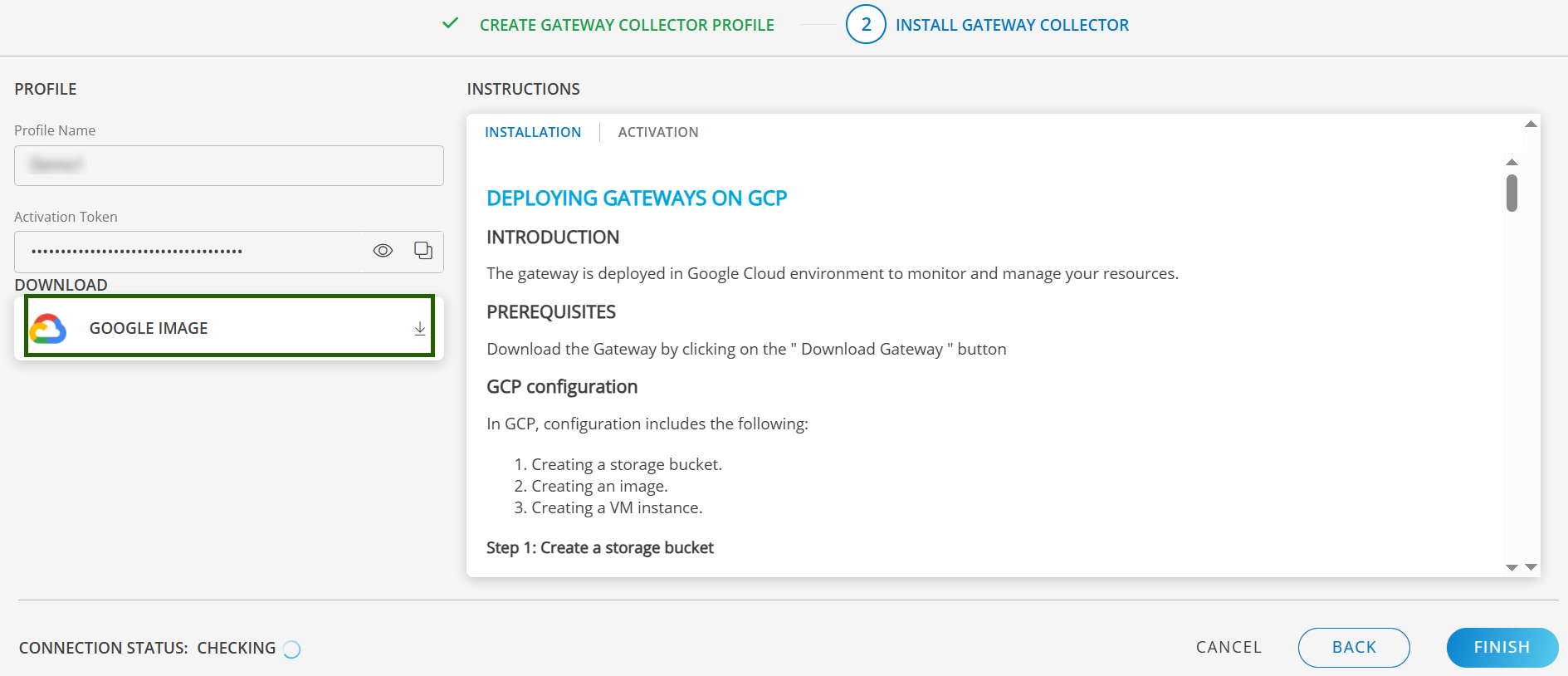
- Finally, Click to Finish to complete the configuration.
Step 2: Create a Storage Bucket
Buckets are the basic containers that hold your data. Everything stored in cloud storage must be contained in a bucket.
- Log into GCP with your credentials.
- From the Projects list, select the project to deploy the gateway.
- On the left pane, from Storage menu, click Storage and click Create Bucket.
- From Create a bucket, enter a bucket name (Example: opsramp-gateway) and click Continue.
- From the available default storage class options, select Multi-Regional and click Continue.
- (Optional) Configure Control access to objects and Advanced settings.
- Click Create. The bucket you created is in the Buckets list.
- Click the name of the bucket in the Buckets list.
- From the Objects tab, click Upload Files and select the gateway image file. The gateway image file is uploaded to the bucket.
Step 3: Create an Image
A virtual machine image is a single file that has a virtual disk with a bootable operating system. Google permits you to define virtual machine images or use pre-defined images that are used to create one or more virtual machine instances that look alike.
- On the left pane, from the Compute Engine menu, click Images. Images list is displayed.
- Click Create Image.
- Enter the following details:
- Name: Enter a unique name for the gateway image.
- Source: Select Cloud Storage file from the drop-down options.
- Cloud Storage file: Select the gateway image file that is attached to the storage bucket.
- Encryption: Google-managed key is selected by default.
- Click Create. The new image displays in the images list.
Step 4: Create a VM Instance
An instance is a virtual machine hosted on the Google infrastructure. A virtual machine instance is created for the gateway using the gateway image.
- On the left pane, from Compute Engine menu, click VM Instances.
- Click Create Instance.
- Enter the following information:
| Field | Description |
|---|---|
| Name | Unique gateway instance name |
| Region | Select US-central1 |
| Machine Type | Minimum requirement is two vCPU, 4GB |
| Access scopes | Default: Allow default access |
| Firewall | Ensure port 22 and port 5480 are permitted on the gateway to access web and serial user interfaces |
- Click Create.
- Verify if the gateway is installed in Google Cloud Platform (GCP).
Once the instance is ready, you can access the Gateway Admin UI at: https://<Public/Private Gateway IP>:5480
For the next steps, refer Install Gateway on AWS, Azure, and GCP